
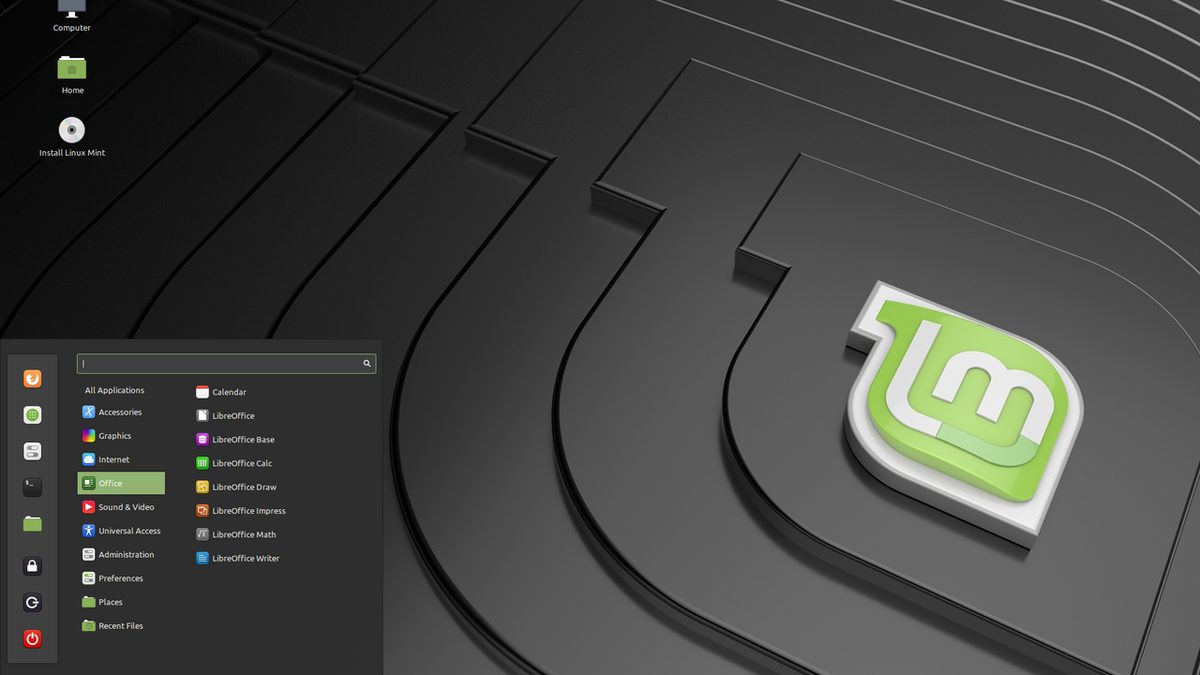
For anyone moving from Windows to Linux Mint, the first day usually starts with the same question: "I've installed it, now what?" The system works as it comes out of the box, but a handful of settings in the first week prevent most of the problems you would otherwise run into in the months that follow. This post is a tidy summary of the steps I applied on my own computer and check regularly with a maintenance program.
1. Updates first
The installation media may have been made a few months ago, so the security patches released since then are missing. Open Update Manager from the menu; if it suggests a mirror on first launch, pick a fast local one, then install all the listed updates.
If you prefer the terminal, these two commands do the same job:
sudo apt updatesudo apt upgrade
If a kernel update arrived, the new kernel is not used until you restart. Update Manager shows a small notice at the bottom right; do not put it off.
2. Drivers
Driver Manager in the menu shows the recommended driver for hardware such as the graphics card and wireless card. On laptops with an NVIDIA graphics card, choosing the driver marked "recommended" makes a clear difference to gaming and video performance and to battery life. A restart is needed after installing.
A tip: if the screen does not come up after changing drivers, do not panic. At boot you can open "Advanced options" in the GRUB menu and start with the previous kernel or in recovery mode. That is why the next step matters so much.
3. Snapshots with Timeshift: the system's insurance
Timeshift takes copies of the system files (excluding your home folder) at given moments. If an update or a driver change breaks the system, you can go back to how it was a day earlier in a few clicks. Mint suggests Timeshift on first launch, but unless you turn on the schedule yourself it never takes snapshots automatically.
- Open Timeshift and choose RSYNC as the type.
- Choose the system disk or a second disk as the target.
- On the Schedule tab, tick Daily (5 copies) and Boot (3 copies).
- On the Users tab, leave the home folder excluded; use a separate backup for your personal files.
With this setup the system usually uses 10–20 GB, and you can return to any of the last five days.
4. Turn on the firewall
Linux Mint comes with a firewall (UFW) installed, but it is off by default. It is a good habit to have it on even on a home network: incoming connections are blocked even if you never notice that a program you installed has opened a port.
Open Firewall Configuration from the menu and switch "Status" on. The default rule is "incoming: deny, outgoing: allow", which is right for everyday use.
5. Automatic login and screen lock
If "automatic login" was chosen during installation, anyone who turns on the computer gets straight to your desktop, email and the passwords saved in your browser. On a laptop that is a serious risk. Turn off automatic login in the Login Window settings.
In the same way, check in the Screensaver settings that "lock the computer when the screensaver is active" is on and the delay is reasonable (5–10 minutes).
6. Three ways to install apps
There are three ways to install programs on Mint, and which one you choose affects updates and disk use:
| Route | Advantage | Watch out for |
|---|---|---|
| Software Manager (apt packages) | Best integration with the system, little disk space | Versions are sometimes a little old |
| Flatpak | Up-to-date version, runs isolated | Downloads a runtime on first install (a few hundred MB) |
| The vendor's .deb file | Official builds of apps such as Chrome and VS Code | Download only from sources you trust |
Flatpak apps are updated from Update Manager. Now and then, the flatpak uninstall --unused command removes runtimes no app uses any more and can free up several GB.
7. Review what starts at boot
The Startup Applications window lists the programs that start automatically when you log in. Remote desktop tools, printer icons and tray helpers you do not use slow down startup and use memory. Turning one off does not uninstall it; it only stops it starting by itself.
8. TRIM for SSDs and temperature
If you use an SSD, a weekly TRIM keeps the disk fast in the long run. Mint has a timer for this; you can see whether it is on with systemctl status fstrim.timer.
On a laptop, if the CPU temperature is above 80 °C even when idle, the problem is hardware, not software: a dusty fan or dried-out thermal paste. You can watch the temperature with the sensors command (lm-sensors package).
Short checklist
- All updates installed, restarted
- Recommended driver selected
- Timeshift running with daily and boot schedules
- Firewall on
- Automatic login off, screen lock on
- Unneeded startup apps turned off
- TRIM timer enabled, temperature normal
Going through this list once a month turns Linux into a "set up and forget" system that runs without trouble for years. Instead of doing these checks by hand, I handed them to a small program that scans by itself every day; but done by hand, they take no more than ten minutes in total.
Frequently asked questions
Does Linux Mint need antivirus?
For desktop use it usually does not; timely updates, installing software from official repositories and keeping the firewall on are the real protection. ClamAV can be used in special cases such as a server passing files to Windows.
Does Timeshift back up personal files?
Not by default; Timeshift backs up system files so you can roll back a broken update. Documents and photos need a separate backup tool.
Flatpak or apt?
Use the repository (apt) version for tools integrated with the system and Flatpak for desktop apps where you want the latest version. Avoid installing the same app both ways.
Sources
This article is a compilation based on the sources below and personal experience; its assessments are opinions. In practice, the manufacturer's official documentation and applicable regulations take precedence.
- Linux Mint official documents — linuxmint.com/documentation
- Timeshift project page — github.com/linuxmint/timeshift
Comment
No comments yet. Be the first to comment!
Leave a comment