
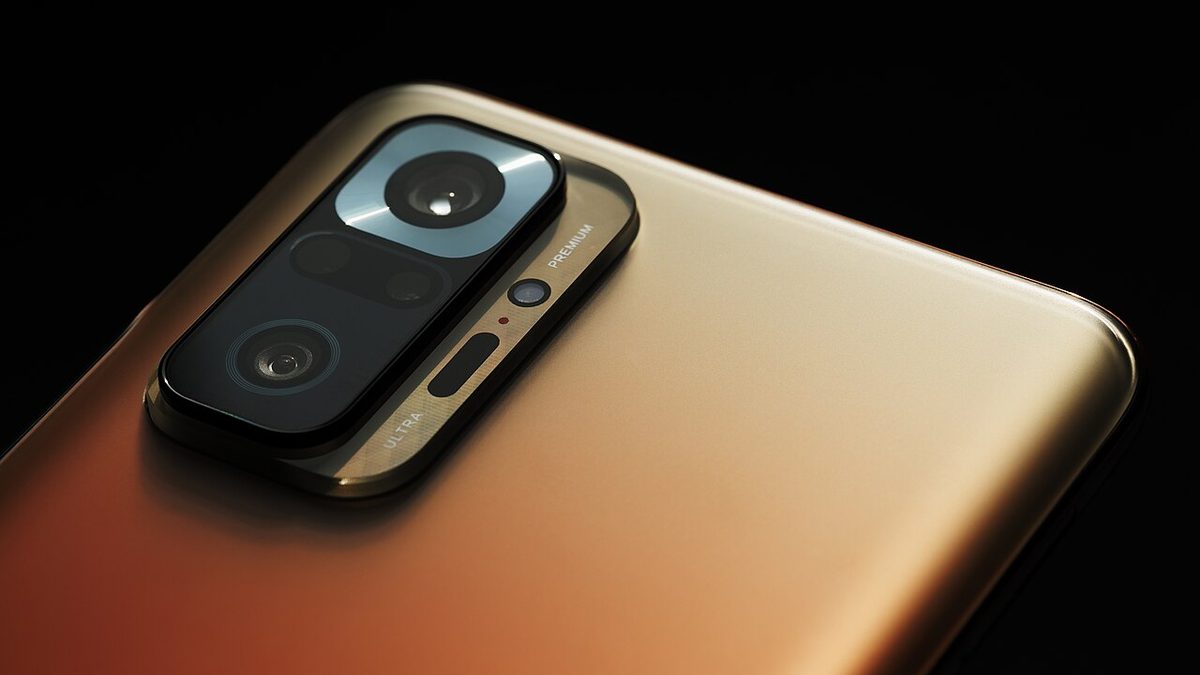
On my Xiaomi phone, an ad appeared on screen every time I opened and closed a video. News I never asked for showed up on the lock screen, and banners popped up inside Settings. Trying to switch them off one by one does not work, because the ads do not come from a single place. This post explains how to switch off all four separate layers, both from the phone and from a computer.
I applied every step below on a Redmi Note 11S (MIUI V816, Android 13) and measured the results. The method works the same way on every Xiaomi / Redmi / POCO model running MIUI.
Where exactly do the ads come from?
The reason for the confusion is this: in MIUI, ads are not tied to a single "ad setting". There are four independent layers, and each one is switched off differently. If you switch off one layer and leave the others, you end up feeling "I turned it off but it keeps coming".
Three of the four layers come from the phone's own packages and one comes from the internet. That is why no single setting turns them all off.
Method A: from the phone only
No computer needed; every step is done in Settings. For most people this is enough.
Disable the ad packages
Settings › Apps › Manage apps : type each name below in the search box, open it and tap Disable :
- Mi Video : the source of the ads and suggestion feed shown when a video ends
- Mi Music : uses the same ad system
- Wallpaper Carousel : lock screen content feed
- GetApps : Xiaomi's app store, sends ad notifications
If you cannot see system apps, tap the three dots at the top right and tick Show system apps .
Revoke the MSA authorisation
The permission for the system ad service is held separately on the account side:
Settings › Passwords & security › Authorization & revocation › MSA → revokeYou will see a "Some features may not work" warning. It is standard deterrent text; I lost no functionality when I revoked it.
Turn off personalised ads
This step does not stop ads, but it stops you being profiled; they are two different things:
Settings › Passwords & security › Privacy › Ad services → turn offSettings › Google › All services › Ads → Delete advertising IDTurn on Private DNS
This is the step that does the real work. It cuts most in-app ads and tracking code at network level:
Settings › Connection & sharing › Private DNS › Private DNS provider hostnameType this in the box and save:
dns.adguard-dns.com
Why is Private DNS better than a VPN? Ad-blocking VPN apps run constantly in the background, drain the battery and route all your traffic through a company. Private DNS is a built-in Android feature: no extra app, no measurable battery cost, and only domain lookups are affected.
What exactly does Private DNS do?
Before your phone connects to an address it has to ask "what is the IP of this domain?". Private DNS sends that question to a server that recognises ad domains. For ad domains the server returns an address that leads nowhere instead of the real IP, so the ad cannot load, while the rest of the page works normally.
The ad domain lands on an address that goes nowhere; the rest of the traffic passes through untouched.
Method B: from a computer (ADB)
Choose this route in three cases: MIUI may have hidden the Disable button for some packages, you want to disable several packages in one go, or you want to verify that your change really took effect. A change made from the menu gives no visible result; with ADB you can measure it.
Preparation
Download the Android platform-tools package to your computer (Google's official package; you do not need to install Android Studio). Then on the phone:
Turn on Developer options
Settings › About phone › MIUI version → tap 7 timesTurn on USB debugging
Settings › Additional settings › Developer options › USB debuggingOn the same screen, set Default USB configuration to File transfer (MTP) . When you plug in the cable, tick Always allow from this computer in the permission window on the phone.
Check the connection
On the computer, the
adb devicescommand should show the phone's serial number withdevicenext to it.
A MIUI-specific trap: every time you restart the phone, MIUI resets USB debugging and the USB configuration. If adb devices comes back empty, the cable is not to blame; you need to switch the setting on again. If the device shows up on USB when plugged in but offers no ADB interface, its USB ID is 2717:ff40 ; with debugging on it changes to 2717:ff08.
Commands
Disable the ad packages in one go:
adb shell pm disable-user --user 0 com.miui.msa.global
adb shell pm disable-user --user 0 com.miui.analytics
adb shell pm disable-user --user 0 com.miui.android.fashiongallery
adb shell pm disable-user --user 0 com.miui.videoplayer
adb shell pm disable-user --user 0 com.miui.player
adb shell pm disable-user --user 0 com.xiaomi.mipicks
Set Private DNS by command (if you did not do it from the menu):
adb shell settings put global private_dns_specifier dns.adguard-dns.com
adb shell settings put global private_dns_mode hostname
Which package does what?
| Package | Role | When disabled |
|---|---|---|
com.miui.msa.global | MIUI system ad service | Banners inside system apps disappear |
com.miui.analytics | Xiaomi usage data collection | Telemetry stops |
com.miui.android.fashiongallery | Wallpaper Carousel | Lock screen content feed stops; your wallpaper stays fixed |
com.miui.videoplayer | Mi Video player | Videos open in the Gallery player, no ads |
com.miui.player | Mi Music | You need another player for music |
com.xiaomi.mipicks | GetApps store | App suggestion notifications stop |
Bonus: even if the Facebook app is not installed, Xiaomi devices come with the com.facebook.services, com.facebook.appmanager and com.facebook.system packages preinstalled, and they use data in the background. On my phone they had used 1 hour 10 minutes of background mobile data in two days. You can disable them with the same command.
Does it work? Test it
Rather than settling for "I suppose I turned it off", there is a measurable test. Look up one ad domain and one normal domain and compare the IPs that come back:
Ad domains land on 127.0.0.1 (that is, nowhere), while normal traffic is untouched. If you want to test from the phone: you can see that Private DNS is really active on the Settings › Connection & sharing › Private DNS screen, and you will notice the difference by opening and closing an app that shows ads.
To see the list of packages you have disabled:
adb shell pm list packages -dWhat is blocked and what is not
| Content | Status |
|---|---|
| MIUI system ads (Settings, File Manager, Cleaner) | Blocked |
| Mi Video / Mi Music ads and suggestion feed | Blocked |
| Lock screen content carousel | Blocked |
| In-app banner ads | Mostly blocked |
| Game ads | Mostly blocked |
| Tracking and analytics code | Blocked |
| YouTube ads | Not blocked |
| Sponsored posts in Instagram / TikTok feeds | Not blocked |
The last two rows have the same cause: these ads come from the same server, over the same domain as the content. There is no way to separate the ad from the content at DNS level; if you block youtube.com , YouTube itself goes too. This needs saying honestly, because most solutions that claim to "block all ads" stay silent at this point.
Undoing it
Nothing you have done causes permanent damage. If an app breaks unexpectedly, undo the changes one at a time:
adb shell pm enable com.miui.videoplayerFrom the phone: find the app in Settings › Apps › Manage apps and tap Enable. For Private DNS, Settings › Connection & sharing › Private DNS › Off is enough; if a website will not open, this is the first place to look.
Things to know
- It survives restarts. Packages disabled with
pm disable-userdo not come back at boot. A major MIUI update may re-enable some of them, though; after an update, check withpm list packages -d. - It is not a factory reset. None of this needs root, affects the warranty or writes to the system partition.
- Do not disable packages at random. Do not apply the long "bloatware lists" circulating online without thinking; the phone's camera, notifications or calling may break. The six packages in this post are limited to ads and telemetry.
- When you disable Mi Video , video files open in the Gallery's own player. If you want something better, install VLC and make it the default.
After applying all these steps, the number of ads I saw on the phone dropped to zero, apart from YouTube. The whole thing takes ten minutes and is undone with a single command. Xiaomi hardware is good for the price; the only thing you had to put up with was this ad layer in the software, and it has a permanent fix.
Frequently asked questions
Does disabling the ad packages harm the phone?
The packages in this guide are advertising and analytics services; disabling them does not break the system. Still, the safe way is to disable them one at a time, use the phone for a while and re-enable a package if something misbehaves.
Does Private DNS block ads in every app?
No. Private DNS stops ad server names from resolving, so it has no effect on apps that serve ads from their own servers and on some in-app ads. It does stop most ads in the system apps.
Will the ads come back after an update?
Major system updates can re-enable some packages or reset the personalised ads setting. Checking the settings and package status once after an update is enough.
Sources
This article is a compilation based on the sources below and personal experience; its assessments are opinions. In practice, the manufacturer's official documentation and applicable regulations take precedence.
- Xiaomi Global Support — mi.com/global/support
- Xiaomi Privacy Policy — privacy.mi.com
Comment
No comments yet. Be the first to comment!
Leave a comment