
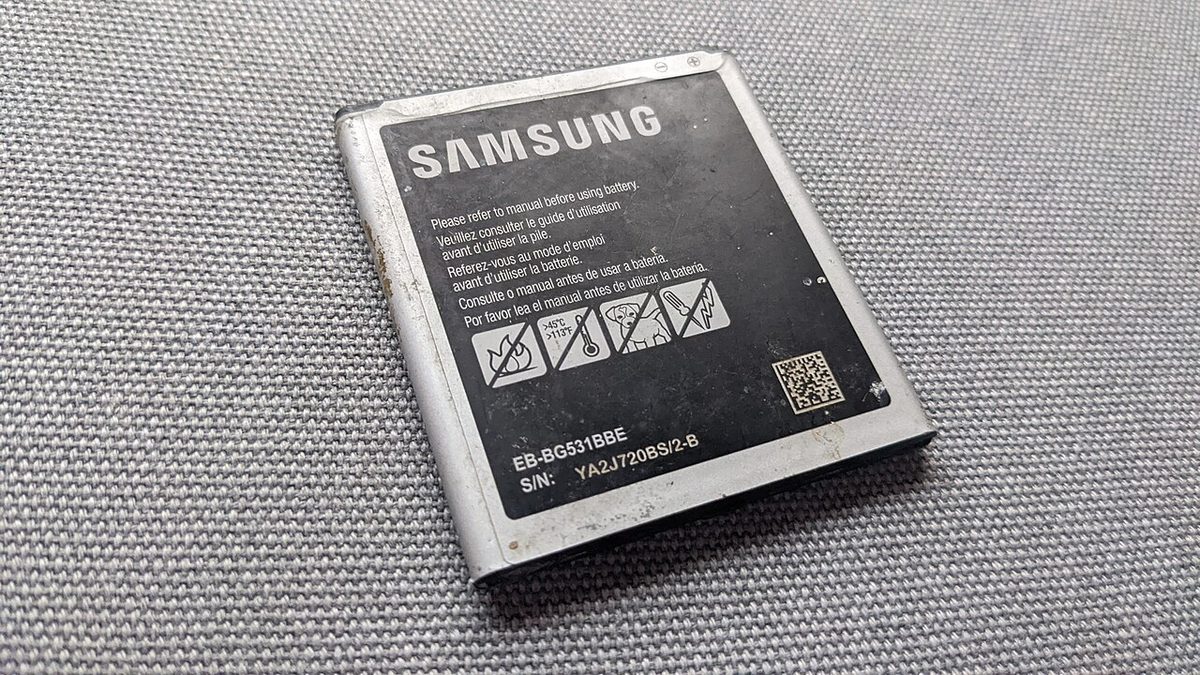
When your phone's battery no longer lasts as long as it used to, the first thought is that the battery has worn out. Yet most of the time the culprit is a few apps that keep waking up in the background, or a wrong setting. In this post I explain how to measure battery drain, which settings really make a difference, and the details specific to Xiaomi (MIUI / HyperOS) phones. The same principles apply to other Android phones too.
Measure first: what is draining the battery?
The Settings › Battery screen shows how much each app has used since the last full charge. Look at two things here:
- An app that uses a lot with the screen on is normal; if you watched videos, YouTube at the top is expected.
- An app that drains with the screen off is the real problem. An app that runs the battery down while you are not using the phone is running constantly in the background or waking the phone up.
Some phones have a Settings › Battery › Battery health menu to see the battery's condition. If capacity has dropped below 80%, a battery replacement may really be needed; if it is above that, the problem is most likely software.
Settings that make a difference
| Setting | Effect | Where |
|---|---|---|
| Screen refresh rate | 120 Hz uses noticeably more than 60 Hz | Settings › Display › Refresh rate |
| Dark theme | On AMOLED screens, black pixels use no power | Settings › Display |
| Screen timeout | 30 seconds instead of 2 minutes adds up over a day | Settings › Lock screen |
| Location accuracy | Limit apps that keep asking for GPS | Settings › Location › App permissions |
| Background data | Cuts unnecessary syncing | App info › Data usage |
Per-app battery restriction
Android offers three options for every app (the names differ slightly in MIUI):
- No restrictions: The app runs in the background whenever it wants. Only for apps whose notifications must not be missed (messaging, alarms, prayer times, work apps).
- Optimised (smart): The system defers background work based on how you use it. The right choice for most apps.
- Restricted: The app hardly runs in the background at all. For shopping and game apps you rarely open.
If an app's notifications arrive late, the problem is usually "battery optimisation". Giving that app "No restrictions" fixes the notifications, but only do this for the few apps that really need it.
Xiaomi-specific: autostart and background limits
MIUI and HyperOS add another layer on top of Android's own battery management. This layer saves battery but frequently kills some apps. For an app to work properly, you need to check two settings:
- Settings › Apps › Manage apps › [app] › Autostart: If this is off, the app cannot set itself up again when the phone restarts.
- … › Battery saver: If "No restrictions" is not selected, the system may stop the app a few minutes after you leave it.
Pulling an app's card down in the recent apps screen and locking it (padlock icon) also stops the system closing it during "clean up".
Known battery killers
- Live wallpapers and animated widgets: They keep drawing as long as the screen is on.
- Weak mobile signal: The modem uses far more power when the signal is weak. If you will be indoors for a long time, switch to Wi-Fi.
- Apps that constantly ask for location: "Only while using the app" location permission is enough for weather and social media apps.
- Bluetooth scanning: With "Bluetooth scanning" and "Wi-Fi scanning" turned off in location settings, the device does not search even in the background.
Charging habits
The two things that wear lithium-ion batteries most are being kept at 100% all the time and being charged while hot. Practical advice:
- If your phone supports it, turn on "optimised charging" or "smart charging"; it holds at 80% overnight and finishes towards morning.
- Gaming or using navigation while charging heats the battery.
- There is no need to run the battery down to 0% often; the 20–80% range is the healthiest.
A measurement from my own app
In the assistant app I wrote myself, after tidying up its background jobs and removing a logo animation that ran constantly, I measured that over 17.5 hours of screen-off time the app's total CPU use stayed at 16 seconds, and its memory load dropped by a third. The lesson is this: battery drain usually comes not from "how much an app works" but from "how often it wakes up" and "what it draws for nothing". Looking at your settings this way, making the battery last until the end of the day is usually possible.
Frequently asked questions
Does charging to 100% harm the battery?
Lithium-ion batteries age faster when kept at 100% for long periods, especially when warm. If the phone has a battery protection or adaptive charging option, turning it on keeps the charge around 80% and extends battery life.
Does closing background apps by hand save battery?
Usually not; Android already manages them, and reopening a closed app uses more energy. The real gain comes from restricting the app that stands out on the battery usage screen.
Does dark mode save battery?
On phones with OLED screens yes, because black pixels give off no light. On LCD screens the difference is negligible.
Sources
This article is a compilation based on the sources below and personal experience; its assessments are opinions. In practice, the manufacturer's official documentation and applicable regulations take precedence.
- Android Developers — Optimize for Doze and App Standby
- Don't kill my app! — dontkillmyapp.com (Xiaomi section)
Comment
No comments yet. Be the first to comment!
Leave a comment